The “Core 5”: Essential WordPress Plugins Every New Site Needs
WordPress is the most powerful website builder in the world because of its flexibility. Out of the box, it is a blank canvas. To turn that canvas into a high-performance business machine, you need Plugins.
But here lies the trap.
The official WordPress repository has over 60,000 free plugins. A common mistake new website owners make is treating the plugin store like an all-you-can-eat buffet. They install a “Snowfall Effect” plugin, three different analytics tools, and a heavy page builder.
The result? A slow, bloated, vulnerable website that Google hates.
In 2026, the rules of the web have changed. Google’s Core Web Vitals metrics demand speed. Cyber threats demand robust security. AI demands structured data.
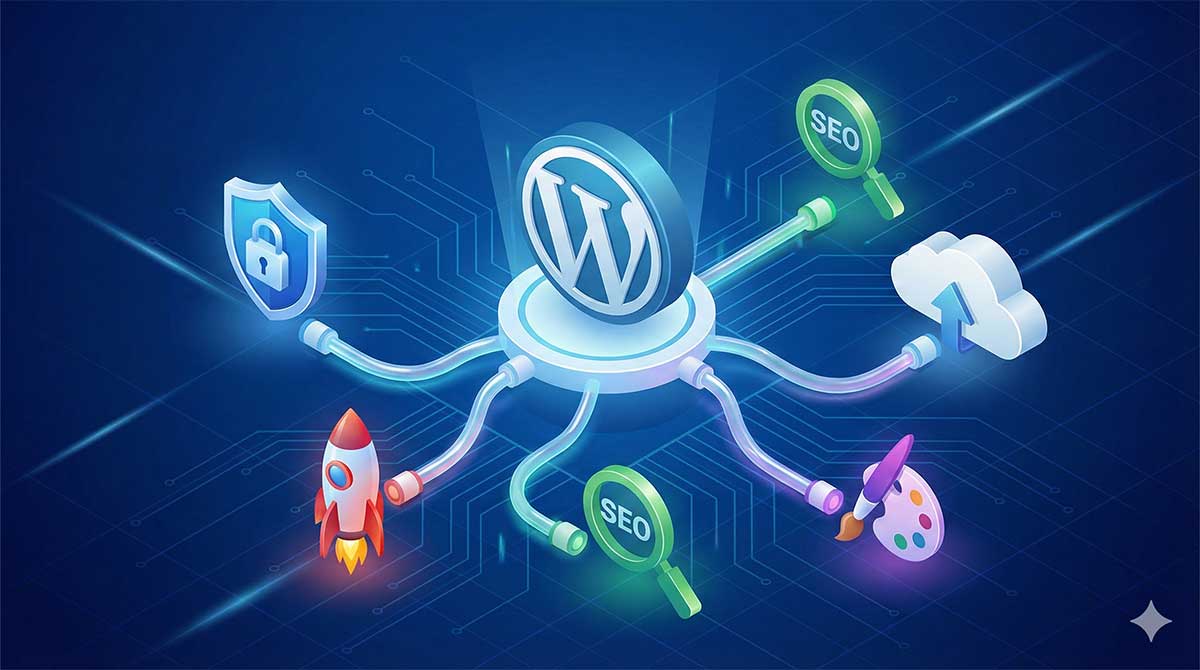
You don’t need 50 plugins. You need the Right 5.
Below is the definitive list of the 5 essential plugins that provide the infrastructure for a successful website in 2026, keeping your site fast, safe, and visible.
1. The SEO Brain: Rank Math SEO
Category: Search Engine Optimization
For years, Yoast SEO was the king. But as we moved into the mid-2020s, a new champion took the throne: Rank Math.
Why is SEO crucial? Because you can have the most beautiful website hosted on high-speed Bluechipspace servers, but if Google can’t read your content, you don’t exist.
Why Rank Math Wins in 2026:
Rank Math is a “Swiss Army Knife.” In the past, you needed one plugin for sitemaps, one for schema markup, and one for keyword optimization. Rank Math does it all in one lightweight package.
-
AI Content Suggestions: It includes built-in AI tools that analyze your writing in real-time and suggest improvements to help you rank higher.
-
Auto-Configuration: It automatically configures your site’s technical SEO settings based on industry best practices.
-
404 Monitor: It tells you immediately if visitors are hitting broken links on your site so you can fix them.
The Setup Tip: When installing, use “Advanced Mode” but stick to the recommended settings. Connect it to your Google Search Console account immediately to see your data right inside your WordPress dashboard.
2. The Bodyguard: Wordfence Security
Category: Security & Firewall
We mentioned this in our Security Guide, but it bears repeating: WordPress is the #1 target for hackers.
You need a firewall. A firewall acts as a digital bouncer, standing between your website and the rest of the internet, checking the ID of everyone who tries to enter.
Why Wordfence?
Wordfence is widely considered the gold standard for free WordPress security.
-
Live Traffic View: You can see real-time attempts by bots trying to hack your site (it is terrifying but satisfying to watch them get blocked).
-
Malware Scanner: It checks your core files against the official WordPress repository to ensure no malicious code has been injected.
-
Login Security: It enforces strong passwords and limits login attempts, stopping brute-force attacks cold.
Pro Tip: If you can afford the premium version, the “Real-Time IP Blocklist” is worth its weight in gold. However, the free version is sufficient for most new blogs.
3. The Speed Booster: WP Rocket (or LiteSpeed Cache)
Category: Caching & Performance
Speed is money. Amazon found that every 100ms of latency cost them 1% in sales.
WordPress is dynamic—meaning every time someone visits a page, the server has to “build” that page from scratch using PHP and MySQL. This takes time. A Caching Plugin takes a snapshot of the finished page and serves that snapshot to visitors instantly.
Which One Should You Choose?
-
Option A: LiteSpeed Cache (Best if hosted on Bluechipspace): If your host uses LiteSpeed Web Servers (which are faster than Apache/Nginx), this plugin connects directly to the server hardware for unmatched speed. It is free and powerful.
-
Option B: WP Rocket (Best for everyone else): If you are on standard hosting, WP Rocket is the premium standard. It handles caching, file minification (shrinking code), and lazy loading (delaying images) with just a few clicks.
The 2026 Requirement: Ensure your caching plugin supports “Delay JavaScript Execution.” This is the secret to passing Google’s Core Web Vitals tests.
4. The Time Machine: UpdraftPlus
Category: Backups
There are two types of website owners: those who have lost data, and those who will.
Your server might crash. An update might break your theme. You might accidentally delete a critical file. Without a backup, your business is gone.
Why UpdraftPlus?
While many hosting providers offer server-side backups, you should never rely solely on your host. You need an independent copy of your data.
-
Cloud Storage: UpdraftPlus allows you to send your backups directly to Google Drive, Dropbox, or Amazon S3.
-
Scheduled Backups: Set it and forget it. You can configure it to back up your database every day and your files every week.
-
One-Click Restore: If something breaks, you don’t need to know code. You just hit “Restore,” and your site travels back in time to when it was working perfectly.
The Golden Rule: Always run a manual backup before you update any plugins.
5. The Image Compressor: ShortPixel
Category: Media Optimization
In 2026, heavy images are the number one reason for slow websites. You might upload a 5MB photo from your phone, but your website only needs a 100KB version.
If you have 10 unoptimized images on a page, that page will take 10 seconds to load on mobile.
Why ShortPixel?
ShortPixel automatically optimizes images as you upload them.
-
WebP & AVIF Conversion: These are the modern image formats Google loves. They are 30-50% smaller than JPEGs but look exactly the same. ShortPixel converts your old images to these formats automatically.
-
Glossy vs. Lossy: You can choose how aggressive the compression is. For photographers, “Glossy” keeps the quality high. For bloggers, “Lossy” makes the file tiny with no visible difference to the naked eye.
Honorable Mention: The Form Builder
Every site needs a way for users to contact you.
-
WPForms (Lite): It is drag-and-drop, beginner-friendly, and integrates with email marketing tools. Don’t publish your email address directly (unless you love spam); use a form.
The “Plugin Diet” Rule
Before you go and install these, remember the Plugin Diet.
Every plugin you add adds code. Every line of code adds weight.
-
0-10 Plugins: Healthy, Fast.
-
10-20 Plugins: Manageable, but keep an eye on speed.
-
20+ Plugins: You are likely slowing down your site.
The Verdict: Start with this Core 5. They cover your bases: Search, Security, Speed, Safety, and Size. Build your content foundation first, and only add more plugins if you absolutely, positively need a specific feature.
Your hosting at Bluechipspace provides the engine, but these plugins provide the tires, the steering wheel, and the airbags. Drive safe.